OBS gives you broadcast control—but routing uncleared music through it still gets VODs muted. Build a dedicated royalty-free playlist from FreeBeatHub, route it on its own track, and duck under mic so live streams sound professional and archives stay clean.
OBS Audio Routing Basics
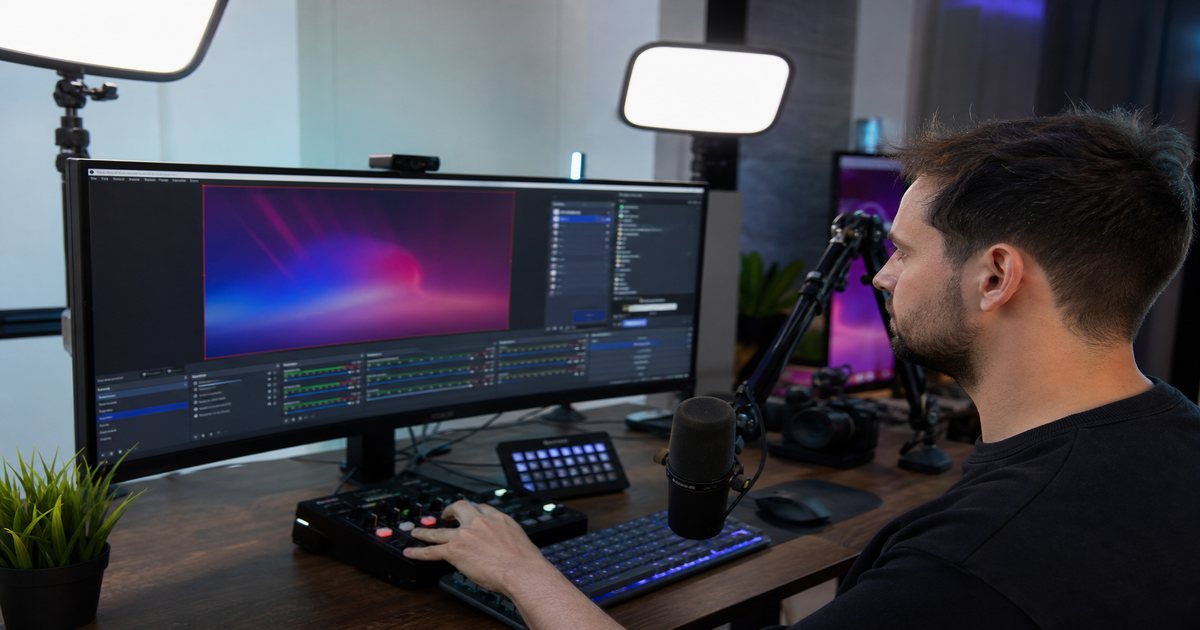
Add music as a dedicated Media Source or VLC Video Source—not desktop audio capture from a consumer app. Assign to Track 2 or higher if you record multitrack for post-VOD editing.
- Never route Spotify or Apple Music desktop audio
- Use Media Source for local cleared files
- Assign music to isolatable OBS tracks
- Monitor with headphones to catch clipping early
Explore cleared tracks for obs audio routing basics on Browse Music, or read related streaming tips on our blog.
Playlist Sources That Loop Cleanly
Pre-trim loops in a DAW to remove long intros. OBS shuffle is fine for variety; avoid back-to-back tracks with wildly different LUFS. Normalize playlist to -14 LUFS integrated.
Putting playlist sources that loop cleanly into practice
When playlist sources that loop cleanly clicks with your audience, save the track name and settings—you will reuse them faster than searching from scratch.
Mic Ducking During Commentary
Apply OBS sidechain ducking or a compressor with sidechain input on the music source keyed to your mic. Attack 5–10 ms, release 200–400 ms for natural speech gaps.
Test with a friend who has not seen the project. If they lean in to hear dialogue, the bed is still too loud.
When mic ducking during commentary clicks with your audience, save the track name and settings—you will reuse them faster than searching from scratch.
VOD and Clip Safety
Twitch and YouTube scan VOD audio even when live chat loved the moment. Keep license PDFs and track lists per stream session. See our DMCA-safe guide for platform specifics.
Live forgiveness does not extend to VOD fingerprinting.
If you work with editors or agencies, include cleared track links in the brief—not just "upbeat music." Vague briefs produce trending sounds that block paid usage.
Live streamers often skip vod and clip safety until a claim or muted VOD forces a fix; handling it proactively takes less time than a reshoot.
Compare two versions of vod and clip safety in an unlisted test if stakes are high; small audio tests prevent expensive public mistakes.
Music Across Scene Switches
Pin music sources to persist across scenes using OBS scene inheritance or a dedicated always-on scene. BRB and starting-soon screens can share hype beds; gameplay uses ducked underscore.
Putting music across scene switches into practice
Live streamers who treat obs stream music as a system—not a one-off inspiration—publish faster with fewer rights headaches.
Live streamers often skip music across scene switches until a claim or muted VOD forces a fix; handling it proactively takes less time than a reshoot.
When music across scene switches clicks with your audience, save the track name and settings—you will reuse them faster than searching from scratch.
Pre-Stream Music Checklist
Before going live: verify track clearance, test ducking depth, confirm track isolation in recording settings, and spot-check one song on phone speakers for mud.
- Load cleared playlist only
- Verify sidechain ducking on mic
- Confirm multitrack track assignment
- Log track list with license IDs
- Test 60s recording before going live
Schedule a quarterly audit: remove tracks with unclear rights and refresh beds that feel dated.
When pre-stream music checklist clicks with your audience, save the track name and settings—you will reuse them faster than searching from scratch.
Save this guide to your bookmarks and revisit it when analytics dip—often the fix is pacing, not topic.
Consistency matters more than chasing perfect tracks. Publish with cleared audio, measure results, and refine one variable next time.
Key takeaways
- Treat obs stream music audio as part of retention, not decoration.
- Prefer a small cleared playlist over random trending sounds.
- Keep voice primary; music should support emotion without masking speech.
- Follow FreeBeatHub license terms and keep a download record.
- Revisit levels after you add captions or loud effects.
| Stream State | Music Role | Duck Depth | Source |
|---|---|---|---|
| Starting soon | Hype bed | None | Loop playlist |
| Gameplay | Underscore | 22–28 dB | Media Source |
| Just chatting | Ambient | 18–24 dB | Shuffled cleared tracks |
| BRB screen | Full energy | None | Dedicated BRB loop |
Ready to find your soundtrack? Browse 600+ royalty-free tracks on FreeBeatHub.
Browse Free MusicAdvertisement
Frequently Asked Questions
Can I play Spotify through OBS?
No for monetized or archived streams—Spotify personal licenses do not cover broadcast. Use royalty-free libraries with stream-friendly terms.
Should stream music go to the same OBS track as game audio?
Route music to a dedicated track so you can mute it independently in VOD exports or multitrack recordings.
How loud should stream beds be?
Target 20–28 dB below voice when speaking. Louder during menu or loading screens only.
Do OBS filters affect latency?
Heavy compression chains add minor latency—usually negligible for background beds, not for monitoring voice.